


TapPDF
4.514.00 Reviews
App Specs
- Version
- 1.0.4
- Updated On
- License
- Free
- Downloads
- 100,000+
- Developer
- Mr Khidma
- Categories
- Tools
- Platform
- Android
Screenshots
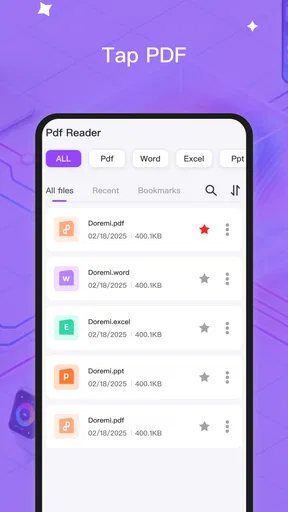
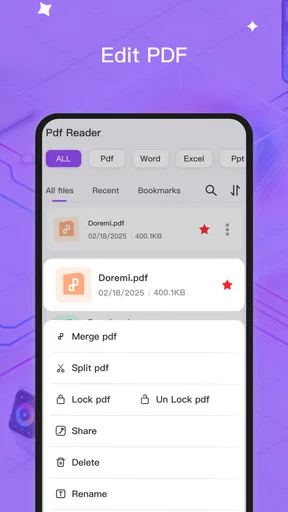
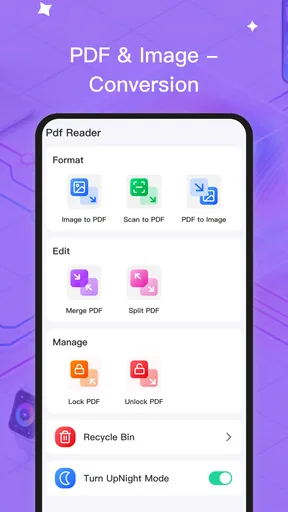
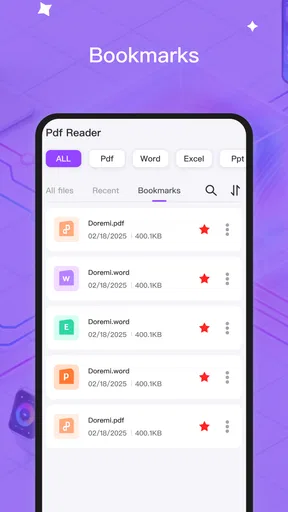
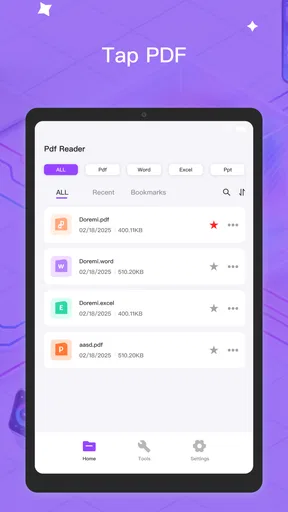
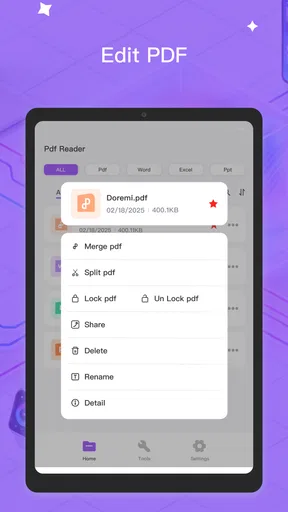
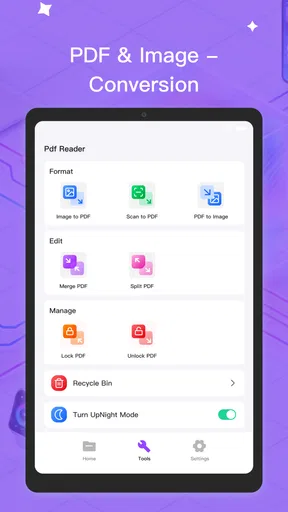
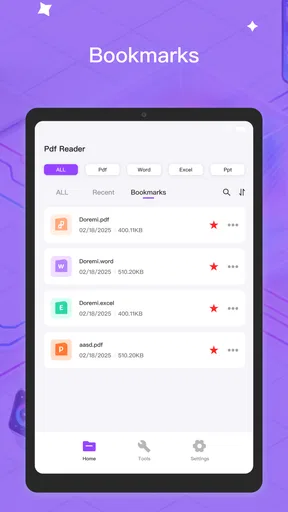
 Analysis by AppCompare
I often think of a PDF reader as a household tool rather than a personal app. One person downloads a school form, another needs to check a rental document, and someone else wants to make a quick correction before sending a file back. That is the space where TapPDF makes sense. It is a free tools app from Mr Khidma, built around reading and editing PDF files on mobile rather than turning document work into a full office project.
After using it, my impression is straightforward: it is most useful when a phone or tablet is shared casually and people need a simple way to open, inspect, and work with PDFs without immediately moving to a computer. It is not the kind of app I would choose for a large document-management operation, but it can be a practical middle ground between a basic viewer and a much heavier office suite.
How TapPDF fits into a shared household device
A realistic example is a family tablet kept in the kitchen or living room. A parent downloads a permission form, a teenager opens a study worksheet, and another household member checks a document received by email. With a reader-and-editor app available, the device can handle those small tasks in one place instead of requiring each person to install a separate tool or find a laptop.
The useful part is the change in workflow. You can open a document, read it on the same screen, and move toward editing when the file needs attention. That is more convenient than switching between a viewer, a file manager, and a separate editor. For occasional household use, reducing those handoffs matters more than having a long list of advanced functions.
I would still treat a shared device as a shared workspace, not as a private document vault. PDFs can contain addresses, school information, invoices, identification details, or other sensitive material. Before handing the tablet to someone else, I would close the file and check where the document was saved. The app’s usefulness does not remove the need for ordinary device hygiene.
That distinction is important because TapPDF is an app for handling documents, not a replacement for household organization. It can help a family open and modify a file, but it does not automatically create a clear separation between one person’s documents and another person’s documents. If several people use the same Android device, separate device profiles or a careful folder system may be more important than the PDF app itself.
What the first use feels like
The current release is version 1.0.4, and the overall impression is that of a focused utility rather than a sprawling productivity platform. I like that positioning. A person who only wants to read a PDF should not have to learn a complicated project system before reaching the document.
Worth Reading Before You Choose

EA SPORTS FC Mobile 26 Is a Bigger Football Game, but It Takes Time

Flipboard Shows What News Apps Must Do Beyond the Feed

Switching to Android Auto Means Rethinking Your Driving Routine

Google Calendar Makes a Crowded Week Easier to Manage

Ludo King Makes the Most of the Minutes Between Plans

Baby Panda World Brings Quick Play to Modern Phones, but Its Game Library Feels Busy
My advice is to begin with an unimportant file. Open a sample worksheet or an old document first, look through the available editing options, and save a copy rather than overwriting the original. That simple habit is particularly valuable on a shared tablet, where another user may later need the untouched version.
One practical strength is the possibility of keeping the reading and editing stages close together. If I am checking a form while talking to someone in the room, I do not want to pause the task to search for another application. TapPDF is at its best in these short, interrupted sessions: open the file, inspect the relevant page, make the required change, and prepare the document for the next step.
Setting boundaries before other people use it
The app is free, which makes it easy to place on a family device without adding a purchase decision to the setup. It also carries an Everyone age rating, so its general audience is broad. That does not mean every document is suitable for every person who can access the tablet. The age label describes the app’s general content context, not the privacy level of the PDFs stored around it.
For a shared setup, I would create a few clearly named folders outside the app’s immediate working area, such as “To review,” “Finished,” and “Keep original.” The exact folder tools available on a device can vary, but the principle is useful: make the document’s status visible. This prevents a child’s worksheet, a parent’s bill, and an unfinished form from becoming one confusing stream of files.
I would also agree on a simple rule: never edit the only copy of an important document. Duplicate it first, then use the copy for changes. This is one of the most valuable habits when an editor is used by several people, because the main risk is often not the app itself but a rushed save over the wrong file.
Another boundary concerns account ownership. If the tablet is logged into one person’s email, cloud storage, or messaging account, opening a PDF from that environment can expose more than the document. TapPDF may be convenient for viewing a file, but it should not be treated as a permission system. Shared hardware needs separate attention to device accounts, screen locks, notifications, and storage locations.
Coordinating edits without creating confusion
PDF editing becomes awkward in a household when two people assume they are working on the current copy. I would use a simple naming pattern that includes the document purpose and status, such as “school-form-original” and “school-form-ready.” It is not exciting, but it makes the next action obvious when someone else picks up the device.
A useful workflow is to read first, discuss what needs changing, and only then open the editing tools. That prevents accidental marks made while someone is simply trying to inspect a page. Once the edit is complete, I would close and reopen the saved copy to check that the result looks right. A document can appear correct during editing but still need a final inspection before it is sent or printed.
This is where a mobile PDF editor has a natural limitation. A phone or tablet is excellent for a quick correction, a short form, or a document that needs checking while away from a desk. It is less comfortable for long contracts, complex layouts, or detailed revisions across many pages. If several household members must comment on the same document, a dedicated collaborative document service may be the better choice.
TapPDF also makes more sense when the task is sequential rather than simultaneous. One person reads, another confirms the details, and the first person saves the finished copy. If everyone needs to edit at once, track changes, or leave a visible discussion history, a conventional collaboration platform will usually provide clearer coordination than a local mobile editing workflow.
Reading, editing, and the trade-off with full office suites
Compared with a basic PDF viewer, TapPDF has a more useful role when the document needs action rather than just inspection. A viewer is enough for reading a manual or checking a timetable, but it becomes limiting when a form needs a correction or a file needs a small adjustment. Having editing in the same app can save time during those moments.
Compared with a full office suite, the appeal is simplicity. Office suites often bring word processing, spreadsheets, presentations, cloud accounts, and many menus. That breadth is valuable for people who need it, but it can feel excessive when the only job is to check and adjust a PDF. TapPDF’s focused identity is better suited to a family member who does not want to learn an entire productivity system for one document.
The trade-off is depth. I would not select it as my only document tool for professional publishing, detailed contract review, or a workflow that depends on sophisticated collaboration. A desktop PDF application may offer more precise control, while an office suite may be stronger when the source file needs substantial rewriting. TapPDF is the practical option in the middle: more capable than reading alone, less ambitious than a complete office environment.
That middle position also affects performance expectations. A short form or a few-page household document is a sensible test. A very large file, a scan with complicated formatting, or a document that must preserve exact visual placement deserves more caution. I would always inspect the saved result before relying on it, especially if the PDF is going to a school, employer, landlord, or public office.
Age, trust, and the people using the device
The Everyone rating makes the app approachable for a broad household audience, including families who want a young person to read a worksheet or open a harmless reference document. Still, the content inside a PDF determines whether supervision is appropriate. An app can be suitable for everyone while the documents opened through it contain private, financial, or adult material.
For younger users, I would prepare the files in advance and keep the task narrow. A child may need to read a worksheet, fill in a simple document, or show a page to a parent. Giving access to a clearly labeled folder is safer and less confusing than leaving a mixed collection of household files available on the same device.
Trust also matters between adults. If a partner or roommate uses the tablet, it is better to agree which documents are communal and which remain private. TapPDF can support the shared part of that arrangement, but it cannot replace a conversation about ownership. A visible file name does not tell you who should be allowed to read the contents.
I would be especially careful with files received through messaging or email. Before editing, confirm who sent the document and whether it is the correct version. After editing, verify the recipient before sharing it. These steps may sound obvious, but a convenient PDF workflow can make it easy to move quickly and overlook the human part of document handling.
Who will get the most from this app
I see TapPDF working well for students who regularly open worksheets, families managing forms, renters checking notices, and anyone who needs occasional PDF changes away from a computer. It is also a reasonable choice for a shared Android tablet where several people need the same basic document capability without installing a large office package.
The app is available for Android devices running version 7.0 or later, so compatibility should be considered before setting it up on an older phone or tablet. On a supported device, the free price lowers the barrier to trying it. The app has reached over one hundred thousand installs and holds a 4.6 average from around one thousand ratings, which suggests that many users find the general concept worthwhile.
I would skip it if your main requirement is advanced team collaboration, extensive annotation management, document signing workflows with strict business controls, or desktop-level layout precision. I would also look elsewhere if you need a tool that organizes every family member’s files automatically. A focused PDF utility can open and edit documents, but it is not the same thing as a family document-management system.
Another reason to choose a different option is heavy daily use across many file types. If PDFs are only one part of a broader workflow involving spreadsheets, presentations, scanned receipts, and shared notes, a full productivity suite may reduce the number of apps you switch between. TapPDF is more convincing when PDF handling is the central need rather than one small part of a much larger system.
Small habits that make the experience safer and smoother
My first tip is to separate originals from working copies before editing. My second is to use a status-based naming system so another person can tell whether a file is unfinished or ready to send. My third is to reopen the final copy and check the pages after saving. Together, these habits address the most common household problems: overwriting, confusion, and unnoticed mistakes.
I would also keep the editing session short and deliberate. Read the whole relevant section before changing anything, especially if the document contains instructions or conditions. On a small screen, it is easy to focus on one blank field and miss a note on the next page. TapPDF can make the edit accessible, but careful reading still depends on the person using it.
When a document will be printed, uploaded, or emailed, I would preview it in the context where it will be used. Check that the intended page is present, that the changes are visible, and that the filename is clear. This is a more reliable routine than assuming a successful save automatically means a successful submission.
Finally, clean up old working copies on a shared device. Temporary PDFs can reveal more than expected, and a crowded document list makes mistakes more likely. Keeping only the files that still have a purpose improves both privacy and coordination, even though that organization happens around the app rather than through a special family feature.
My household verdict
TapPDF is a sensible free PDF tool for people who want reading and editing close together, especially on an Android phone or tablet used for everyday household tasks. I like its focused role, its accessible age context, and the way it can shorten a simple workflow from “find a viewer, find an editor, then locate the saved file” to a more direct document session.
My recommendation comes with clear boundaries. Use it for short forms, worksheets, notices, and quick corrections. Keep originals, name working copies carefully, and do not confuse an Everyone rating with automatic privacy for every document. For complex professional work or true multi-person collaboration, choose a deeper desktop or office-based solution.
For a family deciding whether to install it on a shared device, my answer is yes if the goal is modest and practical: open PDFs, understand them, make occasional changes, and pass the finished copy to the next person. The developer, Mr Khidma, has positioned this release as a straightforward tool, and that simplicity is its main advantage. It works best when you give it a clear job rather than expecting it to manage the entire household’s documents.
Pros
- Converts scanned documents into searchable PDF files
- Supports batch scanning for processing multiple pages efficiently
- Automatic edge detection helps create cleaner document scans
- Offers useful tools for rotating
- cropping
- and rearranging pages
- PDF files are easy to share through email or cloud services
Cons
- OCR accuracy may drop with blurry images or unusual fonts
- Some advanced features may require a premium subscription
- Large multi-page PDFs can take noticeable storage space
- Editing options are more limited than in full PDF editors
- Scanning quality depends heavily on the phone camera and lighting
FAQs for TapPDF
What is TapPDF, and what can I use it for?
TapPDF is a mobile PDF utility designed for reading, opening, and managing PDF documents on a smartphone or tablet. After testing it, the app is most useful for quickly viewing files, checking documents while traveling, and keeping PDFs accessible without needing a computer. Depending on the version available on your device, it may also include tools for organizing files, sharing documents, or performing basic document actions.
Is TapPDF free to download and use?
TapPDF may be available as a free download, but users should check the current Google Play Store or Apple App Store listing before installing it. Some features can be limited by advertising, in-app purchases, subscriptions, or the specific version offered in your region. I recommend reviewing the pricing section and trial conditions carefully, especially if you only need a basic PDF reader and do not want recurring charges.
Can TapPDF open all PDF files, including large or password-protected documents?
TapPDF should handle standard PDF documents such as manuals, forms, ebooks, receipts, and work files, but compatibility can vary depending on how a file was created. Very large documents, scanned PDFs, files with unusual fonts, interactive forms, digital signatures, or advanced security settings may not display perfectly. Password-protected documents will generally require the correct password, and restricted files may prevent editing, copying, or printing.
Does TapPDF require an internet connection to read PDF files?
For ordinary reading, TapPDF can generally be used offline once a PDF has been downloaded or stored on your device. An internet connection may still be needed to download files from cloud services, synchronize documents, display advertisements, access online features, or obtain updates. Before traveling or working without connectivity, open the required documents in advance and confirm that they are saved locally rather than available only through an online location.
Is TapPDF safe to use for private or confidential documents?
TapPDF can be convenient for everyday documents, but sensitive files deserve additional caution. Before storing contracts, identity documents, medical records, or financial information, review the app’s developer details, permissions, privacy policy, and data-handling practices in the official store listing. Avoid granting unnecessary access, keep your device protected with a passcode or biometric lock, and do not assume that viewing a PDF automatically provides encryption or secure cloud storage.


